

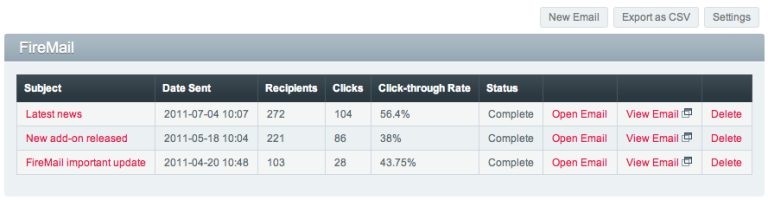
FireMail allows you to easily send mass mails directly from your ExpressionEngine 2 control panel. It can track sent emails, import templates, use template tags in emails, send to mailing lists and batch send.
FireMail has been discontinued and is no longer available for sale. Thank you for the continued support over the years. Please consider an alternative add-on.
The built-in email tool in ExpressionEngine 2 found under Tools > Communicate is sufficient for simple email sending, but it lacks many important features. FireMail is a complete email tool that replaces the Communicate tab, but that reuses the best of ExpressionEngine’s built-in email libraries.
FireMail allows you to track opens, clicks and unsubscribes resulting from any email you send.

FireMail also adds a WYSIWYG editor when composing emails and supports batch sending.

Requirements #
FireMail requires ExpressionEngine version 2.6.0 or above.
Installation #
Download and unzip FireMail, then follow the simple steps below:
- Upload the
system/expressionengine/third_party/firemailfolder - Upload the
themes/third_party/firemailfolder - Install the Firemail module (Control Panel → Add-Ons → Modules → Install)
- Install the Mailing List module (Control Panel → Add-Ons → Modules → Install) if you plan on using mailing lists
- Create an upload destination called
Firemail(Control Panel → Content → Files → File Upload Preferences) - Open the Firemail settings (Control Panel → Add-Ons → Modules → Firemail) and make any desired changes
Updating #
Download and unzip the latest version of FireMail, then follow the steps below:
- Overwrite the
system/expressionengine/third_party/firemailfolder - Overwrite the
themes/third_party/firemailfolder
Settings #
There are a number of module settings which you can change:
From Name
The name from which emails will be sent (can be changed when composing an email)
From Email
The email address from which emails will be sent (we recommend creating a new email address especially for sending mass emails so that you receive bounce backs all in one place)
Batch Size
The number of emails that will be sent in each batch (emails are always sent in batches)
Max Emails per Hour
Max number of emails that can be sent per hour as allowed by your webhost (leave blank for unlimited)
Template Group
The template group whose templates can be imported into an email
Rich Text Editor Enabled by Default
Whether the Rich Text Editor on the compose page should be enabled by default
Query String
Whether to enable a query string that can be entered to alter the output of an imported template
Accepted Admin Email
Whether to send only to members who have chosen to accept email
Advanced Content Filter
Whether to filter incoming HTML content by transforming and deleting disallowed elements, attributes, classes and styles (see the CKEditor Advanced Content Filter docs)
Custom Toolbar
You can customise the toolbar by manually entering code in the following format (see the CKEditor toolbar docs for all toolbar icons)
[ "Bold", "Italic", "Underline", "Strike", "Subscript", "Superscript" ],
[ "Link", "Unlink", "Anchor" ],
[ "Image", "Flash", "Table", "HorizontalRule", "Iframe" ]
Styles
You can create custom styles by manually entering code in the following format (see the CKEditor styles docs)
{ name: "Red Title", element: "h3", styles: { "color": "Red" } },
{ name: "CSS Style", element: "span", attributes: { "class": "my_style" } },
{ name: "Marker: Yellow", element: "span", styles: { "background-color": "Yellow" } }
Email Statistics #
FireMail automatically tracks the number of opens, clicks, and unscubscribes that your email generates. An email can only be recorded as opened if the reader’s email client is capable of displaying html with images and if that option is turned on. If it is not, then there is no way to record open rates unless the recipient clicks on one of the links in the email. Bounces cannot be recorded since these need to be setup on the email server.
Unique Opens
The number of recipients that opened the email (see notes about opens above)
Clicked
The number of recipients that clicked on at least one link in the email
Unsubscribed
The number of recipients that unsubscribed from a mailing list using the unsubscribe link in the email
Not Opened
The number of recipients that did not open the email
CSS in Emails #
When composing emails it is important to note that many CSS functions are not available. This depends on the email client, but most notably, <style> and <link> tags are stripped out by Gmail. Therefore all styling should be added inline and floats and background images should be avoided. Making your emails render correctly in the main email clients is challenging so you should always send several test emails beforehand.
This CSS support guide shows you exactly what tags will work in what email client. Premailer is a useful tool for converting code into email client friendly HTML.
Template Tags #
The email message field is passed through ExpressionEngine’s parsing engine so you can add any template tags to the message. Use the Preview Message link to see how the message will be rendered. The following tags are also available:
{email_link}
Outputs a url that will link directly to the email
Click here to view this email in your browser: {email_link}
{unsubscribe_url}
This will be replaced with a url that will unsubscribe the user from a mailing list. Note that this only applies to users who are in mailing list and should therefore only be used when sending to mailing lists. Also note that the email template in the mailing list module is still applied, so if using this method you should change the email template to simply {message_text}.
Click here to unsubscribe from the mailing list: {unsubscribe_url}
{exp:firemail:emails}
Use this tag pair to display sent emails in front-end templates
{exp:firemail:emails member_group="1" mailing_list="2" orderby="subject" sort="asc" limit="10" offset="3"}
    <a href="{email_link}">{subject}<a>
{/exp:firemail:emails}
Importing Templates #
You can create templates specifically for FireMail and specify the template group in the module settings. This allows you create an email message template with template tags that will display dynamic content, and then import the template into FireMail.
Entering a query string allows you to alter the output of the imported template. For example, if you were importing a template called newsletter and it was in a template group called firemail then entering a query string january_2012 would result in the url http://www.site.com/firemail/newsletter/january_2012 being imported. The idea here is that you can set up your template to output the correct entry based on a query string such as a url title or entry id. The template could for example be:
{exp:channel:entries channel="newsletters"}
  {text}
{/exp:channel:entries}
Then entering the url_title of an entry in the newsletters channel as a query string would import that entry’s text. The same logic can be applied to entry ids, categories, etc.
Batch Sending #
FireMail sends emails out in batches in order to prevent a system processing overload or timeout. The maximum batch size is 100, which should work without problems on most servers.
You can choose whether to send all batches at once or to send just one batch at a time. If you have a dedicated server then you should be able to send all batches at once without any problems. If however you have a web hosting account on a shared server (low-cost hosting) then you should check whether your web host enforces an email sending limit. If it does then you should send one batch at a time and ensure that you do not go beyond the limit of emails that can be sent per hour as your web host will most likely block them.
If your web host imposes sending limits then we highly recommend using a service like SendGrid which gives you an SMTP account that you can use to send emails without limits.
Errors #
Any errors that are encountered while sending will be visible on the main FireMail report page. The individual email addresses that failed will appear at the bottom of the email statistics page.
Mailing Lists #
FireMail uses ExpressionEngine’s native Mailing List add-on. If you want to send to mailing lists then ensure that the Mailing List module is installed and that you have changed the email template to simply {message_text}.
FAQ #
My web hosting company only allows me to send 300 emails per hour, how should I do this with FireMail?
First of all we highly recommend using a service like SendGrid which gives you an SMTP account that you can use to send emails without limits. If you choose not to do this, then first set the max number of email per hour to 300 in the FireMail settings page. We recommend setting your batch size to max 100 (or 90 if you still want to be able to send some emails from your server) and sending 3 batches per hour. Select “Send First Batch Only” when you send out your email. It will then appear on the main FireMail page as “Incomplete”. You can then click on the “Send Next Batch” two times so that your recipient count says 300. Then wait an hour and repeat this until all of the emails have been sent out.
Why does nothing happen when I try to import a template?
Ensure that you have selected a template group from the module settings. If you save your templates as files then back them up and then synchronize your templates. Also ensure that you are using FireMail on the exact domain (with or without www) that is set in your general configuration settings.
How can I upload images?
Please ensure that you have created an upload destination called “Firemail”. If you have then you should see a “Browse Server” button in the image dialog. A planned feature is to integrate EE’s native file manager into FireMail which will make uploading images more intuitive. There is no set date yet but this is a high priority feature and will be added in the near future.
Is it possible to save email drafts without sending them?
This is a planned feature but at present it is not possible. A simple workaround is to create an email draft and send it to yourself. Then when you go to the main FireMail page you will see the sent email and clicking on “Open Email” will allow you to edit the email and send it again.
How does FireMail handle bounced emails?
In order to automatically handle bounces your email server would need to be configured. Since there is such a wide variety of servers and hosting plans FireMail does not support automatic handling of bounces. For that reason we recommend that you create an email address specifically for sending mass mails (for example no-return@mydomain.com) so that all bounces will be kept in the same place. It is also recommended that you remove bounced email addresses from your mailing lists so that your ip address does not get blacklisted.
How can I check if my email server has been blacklisted?
You can try a service should as this one however from our tests the results are not always 100% accurate.
Do I need to purchase a license of CKEditor?
No, FireMail is covered by an OEM Closed Distribution License (CDL) which means that you do not need to purchase a license of CKEditor.
Changelog #
Version 1.9.3 #
- Fixed html inline style issue by setting editor to fixed height
Version 1.9.2 #
- Updated times on graph to be localized
- Fixed bug with curly braces being encoded in web browser view
Version 1.9.1 #
- Added Advanced Content Filter setting
- Fixed bug with error reporting if no errors found
Version 1.9.0 #
- Added error capture and reporting so emails continue sending even if an error is encountered
- Added ability to add custom toolbar
- Added ability to add styles to toolbar
- Updated CKEditor to 4.4.7
Version 1.8.17 #
- Fixed dialog input field paddng and spacing
Version 1.8.16 #
- Fixed bug in deprecated EE function
Version 1.8.15 #
- Fixed template comment bug in EE 2.9.0
- Fixed minor bugs
Version 1.8.14 #
Thanks to Gerhard Dalenoort for his contributions to this release.
- Made it possible to use head and body tags in CKEditor
- Fixed bug with XID in error messages
- Fixed minor bugs
Version 1.8.13 #
- Fixed bug with XID not allowing multiple previews in EE pre 2.7
Version 1.8.12 #
- Fixed bug for new installs of previous version
Version 1.8.11 #
- Added MSM site specific settings
- Fixed bug with XID not allowing multiple previews
Version 1.8.10 #
- Improved functionality with MSM sites
Version 1.8.9 #
- Added setting to enable Rich Text Editor by default
- Stability improvements
Version 1.8.8 #
- Removed all deprecated EE functions
Version 1.8.7 #
- Rich Text Editor (WYSIWYG) can now be enabled and disabled
Version 1.8.6 #
- Added support for moved third-party themes folder
Version 1.8.5 #
- Added compatibility for EE 2.6.1
Version 1.8.4 #
- Added compatibility for EE 2.6.0
Version 1.8.3 #
- Added safeguard to ensure batch size is set
Version 1.8.2 #
- Switched CKEditor to “silk” theme (attributions)
- Added Accepted Admin Email setting
Version 1.8.1 #
- Improved output messages
- General bufixes
Version 1.8 #
- Added max emails per hour setting and check
- Added query string option when importing templates
- Added number of emails to mailing lists and member groups
- Made mailing lists and member groups clickable
- Updated CKEditor to version 3.6.2
- Bugfix for urls when importing templates with channel entries tags
- Bugfix for session start
Version 1.7.4 #
- Moved some rogue text from view files into language files
Version 1.7.3 #
- Made compatible with EE 2.2
Version 1.7.2 #
- Minor bugfixes
Version 1.7.1 #
- Fixed theme folder path bug
Version 1.7 #
- Added add-on settings
Version 1.6 #
- Improved stability during sending
- Added ability to import all templates
- Restyled editor and buttons
- Added EE styled dialogs when adding links and images
- Updated version of CKEditor
- Minor features and bugfixes
Version 1.5.2 #
- Improved code stability
- Removed unnecessary toolbar icons
Version 1.5.1 #
- Added base_url to ckeditor config
Version 1.5 #
- Added {unsubscribe_url} tag
- Fixed bug with importing templates in the case when index.php has been renamed
- Fixed bug with {email_link} tag when sending in batches
- Fixed bug that sometimes occured when sending all batches at once
- Moved theme folder to themes/third_party
Version 1.4.1 #
- Added orderby, sort, limit and offset parameters to {exp:firemail:emails} tag
- Fixed url to themes folder if folder renamed
Version 1.4 #
- Added template tag parsing to emails
- Added template import field that pulls in a parsed EE template
- Added message preview
Version 1.3 #
- Added {email_link} tag so emails can be viewed in browser
- Added auto-fill to plaintext version on email
- Added file manager so images can be uploaded and placed directly into email
- Added sample email templates to CKEditor
- Moved CKEditor files into themes folder
Version 1.2 #
- Emails checked for uniqueness before sending so that no duplicates are sent
- Added CSV export option
- Added PDF export option
- Added preview button to email editor
Version 1.1 #
- Added option to send all batches at once or just the first batch
- Added seperate view file ckeditor_config.php for easy customisation of email editor
- Minor bugfixes
Version 1.0.1 #
- Changed email WYSIWYG editor from TinyMCE to CKEditor 3.1 (which supports templates)
- Minor bugfixes
Version 1.0 #
- Initial release